
Invalid or Unauthorized Requests
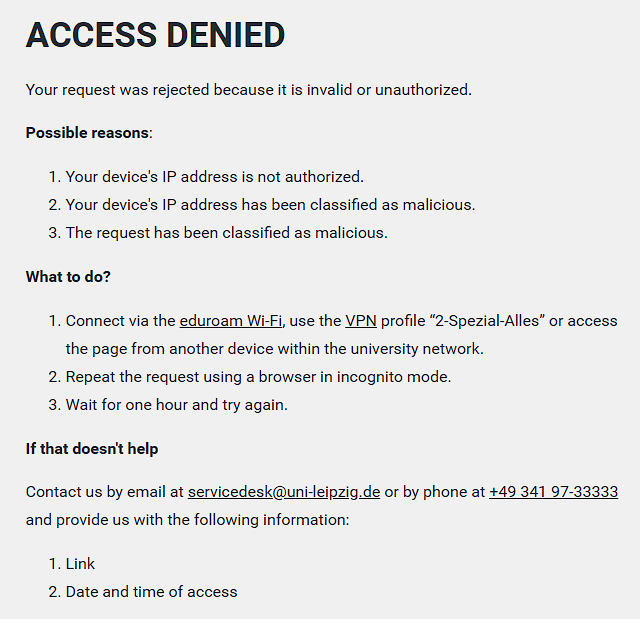
Websites such as Moodle, Mahara, ILIAS, Streaming, etc. are protected against attacks and unauthorized access. If an attack (or suspected attack) is detected, the following error message is displayed:
Access denied
Your request was rejected because it is invalid or unauthorized.
Causes
Access to websites may be denied for one of the following reasons:
- Your device's IP address is not authorized to access the website.
Some websites have public addresses but are only accessible from specific IP addresses. Certain pages (URLs) of a website may only be accessible from designated IP address ranges. - Your device's public IP address has been classified as malicious.
This does not necessarily mean that your device is infected. In most cases, multiple devices share the same public IP address, which can result in "innocent" devices being blocked as well. However, protecting the security and privacy of our services takes priority over avoiding occasional false positives. - Your request contains elements that have been classified as malicious.
Our goal is to protect our systems against attacks while ensuring they remain available to legitimate users.
How to Resolve the Error
In almost all cases, one or a combination of the following solutions resolves the issue (listed in descending order of success rate):
- Use the VPN profile
2-Spezial-Alles. - Switch between Wi-Fi and mobile data.
- Use another device with a different IP address.
- Use eduroam.
- Try accessing the website again later.
Use the VPN Profile 2-Spezial-Alles
When using this profile, all network traffic is routed through Leipzig University. As a result, devices on your local network (such as printers, scanners, or routers) may no longer be accessible, and web browsing may become slower.
These instructions are shown for Windows. The steps are similar on other operating systems. On Apple macOS and iOS, the profile is called Uni-Netz-Profil.
- Install the VPN software by following the instructions for your operating system.
- Establish a VPN connection:
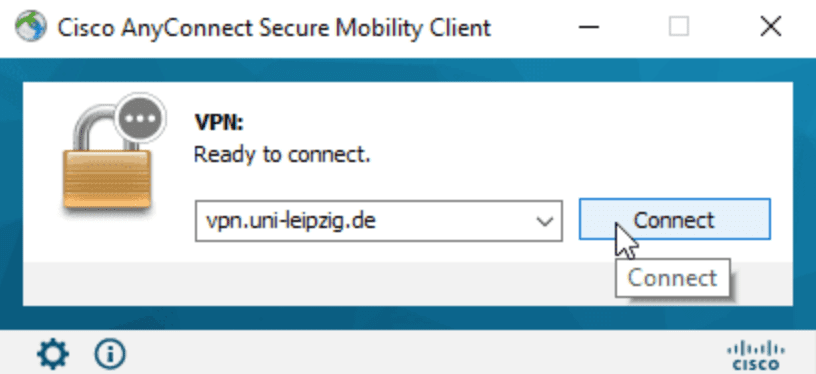
- A new window opens. Under Group, select the profile
2-Spezial-Alles.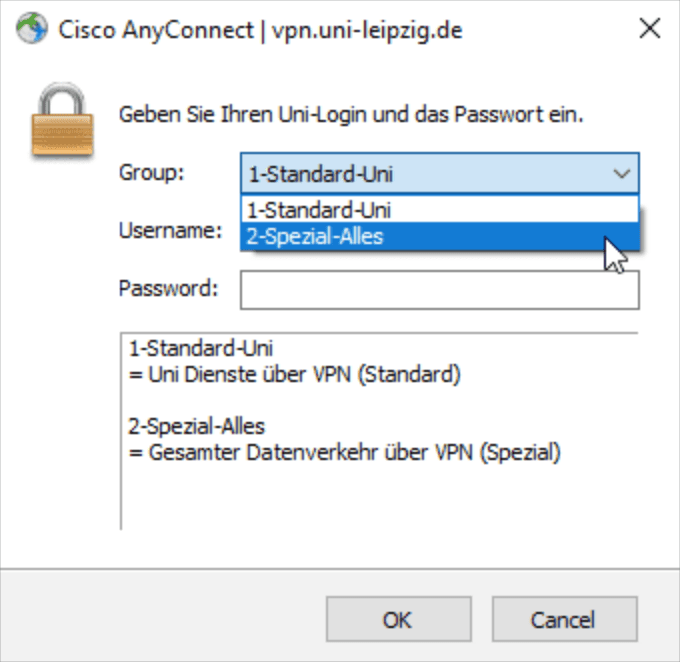
- Enter your university login, including
@uni-leipzig.de, and your password. Then clickOKto sign in.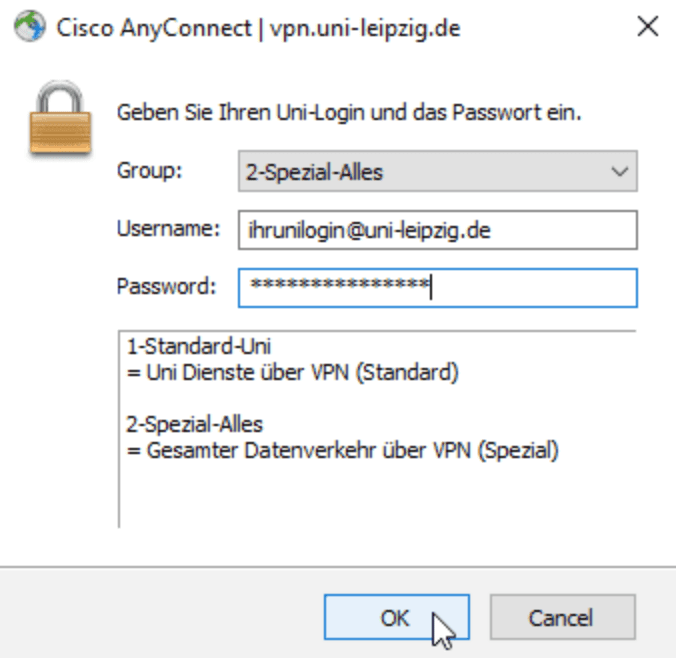
- Try accessing the website again.


Switch Between Wi-Fi and Mobile Data
Mobile devices in particular often have multiple network connections. If possible, switch from Wi-Fi to mobile data or vice versa.
Try Accessing the Website Again Later
IP addresses classified as malicious are usually blocked automatically and only temporarily. They are also removed from the block list automatically. Therefore, it may help to try accessing the website again after a few hours or days.
If None of the Above Helps
- Use our form to determine the IP address from which you are accessing the website.
- Contact us and provide your IP address, the date and time of the request, and the URL of the website you tried to access. Please use our contact options.